Wednesday, November 16, 2011

What's up with Vi

Continuing with my last few posts on basics of Unix world that a CNC needs from time to time, today I chose to talk about the Vi editor. Its one of the most powerful editors on the console and certainly must know aspect of CNC administration.

Here are the few commands i know and have used over the years in Vi extensively. If you don't get it straight away just practice with patience and you will be rolling in no time

If you do not want to go the full path straight away just concentrate on the "basicest"  operations of creating, navigating , inserting and deleting in a Vi editor and you will be good for a while!! :)


General Startup
To use vi: vi filename
To exit vi and save changes: ZZ   or  :wq
To exit vi without saving changes: :q!
To enter vi command mode: [esc]

Counts
        A number preceding any vi command tells vi to repeat
that command that many times.


Cursor Movement

h       move left (backspace)

j       move down

k       move up

l       move right (spacebar)

[return]   move to the beginning of the next line

$       last column on the current line

0       move cursor to the first column on the
current line

^       move cursor to first nonblank column on the
current line

w       move to the beginning of the next word or
punctuation mark

W       move past the next space

b       move to the beginning of the previous word
or punctuation mark

B       move to the beginning of the previous word,
ignores punctuation

        e       end of next word or punctuation mark

        E       end of next word, ignoring punctuation

        H       move cursor to the top of the screen

        M       move cursor to the middle of the screen

        L       move cursor to the bottom of the screen


Screen Movement

       G        move to the last line in the file

       xG       move to line x

       z+       move current line to top of screen

       z        move current line to the middle of screen

       z-       move current line to the bottom of screen

       ^F       move forward one screen

       ^B       move backward one line

       ^D       move forward one half screen

       ^U       move backward one half screen

       ^R       redraw screen
( does not work with VT100 type terminals )

       ^L       redraw screen
( does not work with Televideo terminals )


Inserting

       r        replace character under cursor with next
character typed

       R        keep replacing character until [esc] is hit

       i        insert before cursor

       a        append after cursor

       A        append at end of line

       O        open line above cursor and enter append mode


Deleting

x       delete character under cursor

dd      delete line under cursor

        dw      delete word under cursor

        db      delete word before cursor


Copying Code

        yy      (yank)'copies' line which may then be put by
the p(put) command. Precede with a count for
multiple lines.


Put Command
        brings back previous deletion or yank of lines,
words, or characters

        P       bring back before cursor

        p       bring back after cursor

Find Commands

?       finds a word going backwards

/       finds a word going forwards

        f       finds a character on the line under the
cursor going forward

        F       finds a character on the line under the
cursor going backwards

        t       find a character on the current line going
forward and stop one character before it

T       find a character on the current line going
backward and stop one character before it

; repeat last f, F, t, T


Miscellaneous Commands

. repeat last command

u undoes last command issued

U undoes all commands on one line

xp deletes first character and inserts after
second (swap)

J join current line with the next line

^G display current line number

% if at one parenthesis, will jump to its mate

mx mark current line with character x

'x find line marked with character x

NOTE: Marks are internal and not written to the file.


Line Editor Mode
Any commands form the line editor ex can be issued
upon entering line mode.

To enter: type ':'

To exit: press[return] or [esc]


MOVING

:# move to line #

:$ move to last line of file


Thursday, November 10, 2011

Lets talk .profile

The .profile file in a Unix environment is a "know all" file. It resides under the /home/<userid> dir of the os and it's the first one to be executed whenever that particular user logs in. This is the file that creates the environment for the user and has all the shell options and environment variables defined.

Before we go into how JDE uses this file and why is it important for it, lets see what all it has first:

First and foremost comes PATH:

As the name suggests this is where the path to the dirs of the installed software go. Lets suppose we have a Unix user account MaxPayne. If MaxPayne has all the paths to the software or commands he uses defined in the .profile , he can run those command from anywhere once he logs in to the Unix shell.

Then comes the Editor.

More often than not, when we talk about default shell its the BASH shell and MaxPayne is no different. His shell is bash too and his .profile has Vi as an editor. Vi Editor is one of the most powerful command line editors that we have. Refer my post for the details about using Vi. If you need to change your editor all you need to do is specify it here in the .profile. For the record MaxPayne loves Vi.

Now we see PS1

PS1 defines what the command prompt looks like in the shell. Typically you will find the server name at the command prompt. But MaxPayne is smarter, he has included the $PWD in the PS1 definition so that he can see which dir he is in without ever needing to run pswd again!!

Last common entry is the Alias

Aliases are used to rename some commonly used commands. For example alias dir=ls will help a confused windows user to get the directory information he needs. Aliasing dir with ls tell the unix system to run ls every time MaxPayne types dir.

All the above are default entries in the .profile of any user. When it comes to a JDE Enterprise server what we see are the Oracle homes and the oneworld homes defined in the .profile. When the platform pack is run in the system it creates a .oneworld file in the user dir. This file tells the jde processes where all the JDE files are. We load this .oneworld in the .profile of the JDE file owner. Unless this is done services will not be able to start. So now when you see load libraries failing or path related issues coming up on restart, you know where to check. Majority of the times a corrupted .profile is the source of this.

This in brief is what .profile means to the JDE CNC. If you need any help configuring yours feel free to drop me a comment.


Wednesday, November 9, 2011

Let’s Mount …..

When i was introduced t0 JDE the first and foremost thing that motivated me to go for becoming a CNC expert was that it gave me opportunity to work on UNIX.  Its beyond doubt one of the most formidable platforms for any business and i was a lover since my early college days :)

One of the biggest differentiating factors in Unix is its file system handling. People coming from the Windows world find it difficult to understand that the file storage has nothing to do with the  drives they see in the explorer but is actually a mounted space allocated from the memory available.  Its this “mounting” that makes any file system available for storage.

Syntax for Mount command is as follows:

$ mount /dev/hda3  /home

This command will “load” the resource or filesystem in disk drive hda3 into the local /home and then /home will have the memory on hda3 for use.

The best part of Mount is that you can not only mount hard drives connected to your server but use ones that are connected to the network as well.  This is what is meant when some one says “the db client is a NAS mount”!!

Remember that there is no registry to be maintained in Unix and we don’t necessarily have to install an application on a particular machine to use it. It’s all about the Environment Variable and the file locations.  So if you have an executable and the right parameters set for it in the environment variable, the executable knows how to take care of itself. It knows exactly where to look for the files it needs to execute.

Now when anyone says that the “db client is a NAS mount”, you can figure out that the DB client is installed on a different machine in the network and that particular drive is mounted in your Enterprise server and the Environment variables on your JDE Enterprise Server are set such that your  server knows where to look for the DB client files when its trying to connect to the DB. As far as both the servers concerned are in the same domain and can reach each other in quick time, this works seamlessly.

The biggest advantage that this brings is maintenance of the supporting Applications. If the company has several hundreds of databases this architecture helps the DB support group to maintain all the db’s on their own servers and all the app teams can just mount the locations. Patching and maintenance is spared of the fragmentation and the upgrades can be handled much more efficiently.

If you want to check all the mount points that are currently there on your server execute the following command:  more /etc/auto_direct

Have fun!!

Let me know if the post gives you a little bit of an insight on Mount as a UNIX feature. You can always check the man pages for details about any UNIX command. My intention over here was to drive away the initial fear of “what’s this!!” from anyone who is new to the world of Unix & CNC admin.

JDE CNC Interview Questions

If you landed up on this page searching for “JDE CNC interview questions”, you are at the right place. Read along to find what they ask, what they intend to ask, what they thought they were asking, what they cannot ask and how you should answer, what you should say in case you can’t answer or should you at all be interviewing for a CNC job and yes, you can thank me later.

The first thing that you should do is to stop searching for the interview questions and believe in the fact that there is no shortcut available to portray yourself as an excellent CNC. It’s not a set of instructions that you should know or a bunch of APIs you should know how to call and refer back to. It’s not the “do one time and forget it was ever coded” type of a job. You just cannot read a few pages and get into a CNC’s pinching shoes. No you can’t!!

CNC is a fire fight. It’s a trek through thorny bushes with a low quality slipper on in half pants on a dark night, may I add, without a torch. No, I am not over exaggerating a wee bit. Tell me if you can wake up in the wee hours of the night after you have had a three quarters of a large pizza and a couple of beer bottles to trouble shoot a failed package build or a hung UBE. Or get interrupted on a date for a question regarding why a UBE runs slow from citrix but fast from office. I don’t see any one nodding in affirmation. Yes, this is just a glimpse of a CNC’s work.

A CNC’s job requires a different attitude and a keen eye. It needs a person who loves technology to the extreme and is not bothered to hear complaints about it day in and day out. In fact, any complaints regarding a system to him, is an opportunity to sell an upgrade, a need to get more people involved. A CNC has to be a social butterfly and should be able to convince anybody and everybody that he is in control even in face of a catastrophe. He should know the system inside out rather than outside inwards.

So if you are asked to tell about package build, don’t act like it’s just a job that the dumb guy does at a developer’s command every now and then in your project. Rather be prepared with what’s an err file and how and when does the sts gets created. Know your F91300 when talking about schedulers and remember to talk about platform independence when trying to explain what’s so special about JDEdwards. If you are among the ones who cannot tell what’s the security type of a JDEdwards setup when the security server is not running, CNC is not for you. You just cannot handle the curve balls a CNC job throws at you if you have a unidirectional knowledge. Rather than looking for specific questions and answers invest your time in learning the system more. Learn to appreciate the technology within. Once you have enough respect for the system, you can go for any interview that a CNC job asks for. You will be ready for it.

Please remember that the views expressed are solely my own and I do not guarantee any success. But yes at least if you read this before posting for the quintessential “JDE CNC interview questions” in any JDEdwards forum, it will surely save you from some blushes.

If any CNC gurus land up here, please feel free to leave me a comment. And help me describe the job we all love (no I am not being sarcastic) with better examples than mine.

To all the budding CNC’s , good luck !!

Julian Date and its sql conversion..

Time and again we pull up UPMJs from the tables via backend and need to convert the date that gets pulled into Gregorian. Following query when appended to any date column in a jde table will give the Gregorian date for the corresponding Julian:

TO_CHAR(TO_DATE(XXXXXX+1900000,’YYYYDDD’),’MM-DD-YYYY’)

Notes:
- where XXXXXX is the column name to convert.
- this only works on 19th century onwards.


If you are more comfortable with XLS following are the two conversion formulae that will help:

=DATE(IF(0+(LEFT(A1,2))<30,2000,1900)+MID(A1,2,2),1,RIGHT(A1,3)) where A1 is your date in Julian

="1"&RIGHT(YEAR(A1),2)&TEXT(A1-DATE(YEAR(A1),1,0),"000") where A1 is your date in gregorian.

Firefox Sync… a real make-life-easy feature..

Ohh yess.. this feature of Firefox deserves a real good shout out and is in every way remarkable for people who keep changing PC.. read.. keep getting forced to change PC’s. Its the next level to exporting-importing bookmarks … its Syncing your entire Internet ecosystem with your hand held device such that you can sync it with any other device you need to use Firefox on.

If you use Firefox 3.6.* you need to get the “Firefox Sync” Add-on installed to begin using this feature or if you use Firefox 4 beta its there by default. Sync not only moves the book marks between systems but also the stored passwords as well as the cookies. When you install the add-on it asks you to register and then enter a pass phrase for encrypting your data. Once done, all your bookmarks along with the passwords and the cookies are transferred to the Firefox server in an encrypted format. The beauty of the system is that even if you forget the pass phrase used, it stores the encrypted key on your system and it can be used anytime you are trying to sync another device.


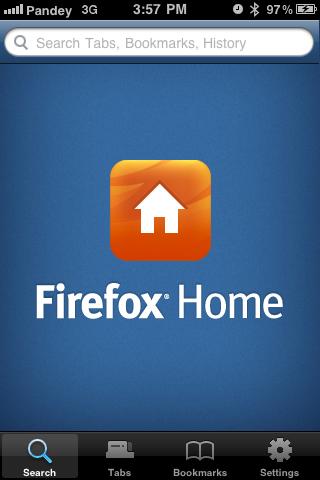
The next step is to install the iPhone app Firefox Home and sign in with the user id created for Sync. Once through, all the data is then available on your phone and ready to be synced with any other PC you need to use Firefox on.

There is currently no app for the Android platform because Mozilla is working on Fennec, the complete firefox explorer for android. So there is Hope

Sp24 Special Dep Server Config..

In line with my last post on SP upgrade on Unix machines, here’s a bit on the special configuration that comes with SP24. Its only needed if you have Vista or Win7 client machines. A few changes have been made to the files being placed under the C: and C:\Windows directories. Since both vista and win 7 restrict programs from accessing these DIR hence JDE has developed symbolic links. Now these Symbolic links are created by the new E1InstallService which needs to be configured on the Dep Server. After building the full package post-SP-upgrade, just before you are about to install a Vista 0r a Win 7 client follow the following steps to enable this service:

1. In the Install.inf on the Dep Server add the following line: OracleE1InstallService={DEP_SERVER_PATH}\E1ServiceInstallation,Setup.exe,/s

2. Create a OracleE1InstallService_silent_setup.inf under E1InstallService folder with the following lines

[SILENT SETUP]
WorkstationDirPath = [your path under c:\Programfiles]
InstallPath=c:\
LaunchPath= {DEP_SERVER_PATH}\OWCinstall\setup.exe
AutoStart = 1

3. Add your user groups under the [E1GlobalGroup] section of the install.inf. Not doing so will result in a dialog box being thrown to alleviate user privs when the user tries to log in a win7 fat client.

4. Now you are all set to install a fat client on a vista or a win 7 client with sp 24.


Foot Note: To check the current version of the Service pack running on your system, go to System\bin32 dir on the deployment server find jdekrnl.dll , right click on it , go to properties and check File Version under the Properties tab.